
Create QR label sheets from CSV: a worked example
This worked example creates three distinct labels with one visual design. It includes the exact CSV structure, the expected output, common validation mistakes and a check that catches labels pointing to the wrong destination.
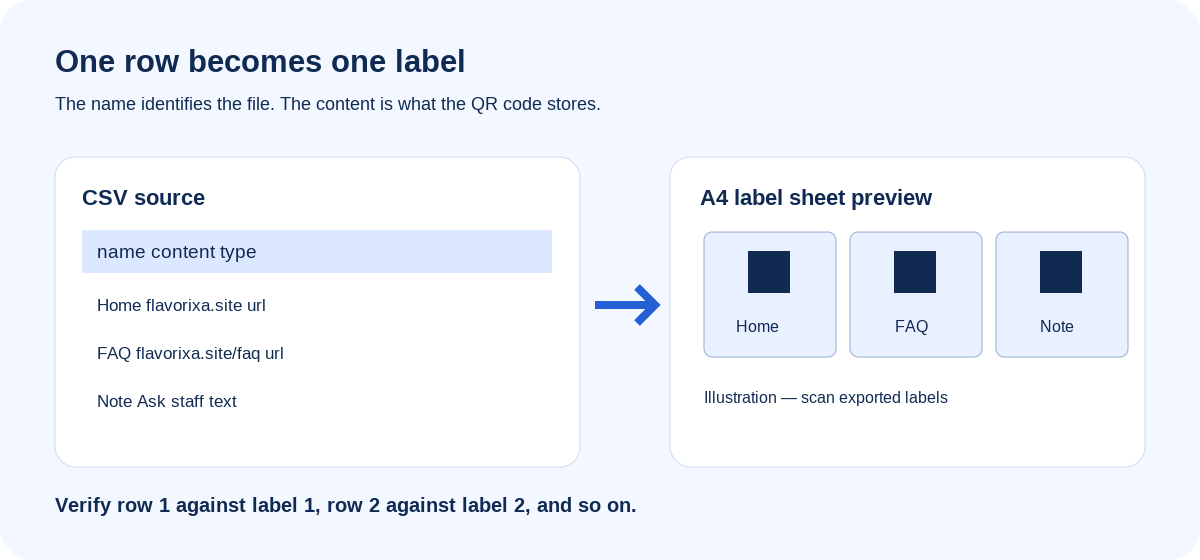
Prepare three rows
Open the QR workspace and choose Bulk create. Use its downloadable example CSV to start with the required header. For this demonstration, replace its rows with the following sample data. The first two rows use public pages on Flavorixa, so you can test the example as written. Replace them with your own destinations when preparing labels for distribution.
name,content,type
Home,https://flavorixa.site/,url
FAQ,https://flavorixa.site/faq/,url
Shelf note,Ask staff about today's selection,text
| Column | Purpose | Check |
|---|---|---|
name |
Identifies the preview and downloaded file | Use a unique, short label for every row |
content |
The exact URL or text encoded in the pattern | Open each URL without signing in |
type |
url or text |
Match the type to the content |
Validate before downloading
- Paste the CSV or import the file. Select one design for the whole batch and press Validate & preview batch.
- Confirm the result says 3 codes. The first four codes are previewed, so all three in this example should be visible.
- Read every displayed name and type. For a larger batch, keep your source CSV beside the downloaded list so rows can be checked beyond the first four previews.
- Download the SVG ZIP when you need separate vector assets, or choose Print batch / PDF for A4 sheets of 50 mm labels. Print at actual size without scaling.
Test the result against the source
Scan the Home label and confirm it opens Flavorixa’s homepage. Scan the FAQ label and confirm it opens the FAQ. The Shelf note must display its text rather than open a webpage. Check a label from the beginning, middle and end of a larger batch, and inspect any row that had commas or line breaks. To include a comma in one CSV field, surround that field with double quotes, for example "Coffee, medium roast". A line break inside a field also needs proper CSV quoting.
Fix failures without wasting a print run
If validation rejects a row, check the header spelling, required values and whether a URL includes its scheme. If a printed code scans but goes to the wrong destination, correct the source row and regenerate the affected label. If the preview works but paper does not, inspect contrast, the white border and printer scaling. Static codes retain their original content, so changing a product URL requires a replacement code or a redirect on a website you control.
Before distribution, keep the source CSV and exported files together, test a printed sample at final size, and assign someone to maintain the destinations. The generator does not host those product pages or keep a saved project after you leave the browser.