
QR codes for a café menu: a practical setup guide
A useful menu QR code starts with the menu page, not the square printed on the table. This worked example shows what to prepare, how to test the complete customer journey, and what happens when you change prices later.
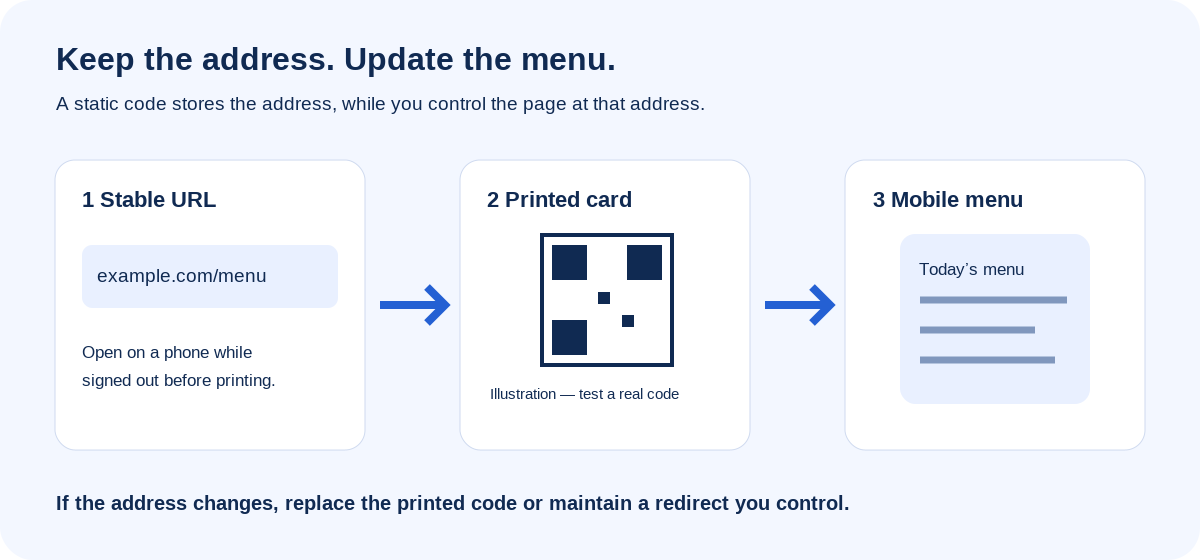
1. Publish a menu that customers can actually open
Use a stable page on a domain you control, for example https://example.com/menu. Test that page in a private browser window on a phone without signing in. Confirm that prices, opening information and the menu are readable without zooming. If you link a PDF instead, confirm that the file is public and remains at the same address. Flavorixa stores the URL you enter; it does not host the menu.
| Destination | What can change later | What needs a new code |
|---|---|---|
| Menu webpage you own | Prices and items on the same URL | A different URL, unless you maintain a working redirect |
| Public PDF URL | The file, if your host lets you replace it at the same URL | A new file address |
| Temporary social post | Very little under your control | A deleted or moved post can strand printed cards |
2. Generate the printed card
- Open the QR generator, choose Website, and paste the complete HTTPS menu URL. Check the spelling and trailing path.
- Choose a dark foreground and a light background. Leave the clear margin around the pattern. Add a logo only if it stays small enough for the code to decode.
- Use Check scan readability. This checks the rendered digital code, then download SVG for a print layout or PNG for a simple document.
- Place a short readable URL beneath the printed code as a fallback. Avoid placing the code over busy photography or cropping its border.
3. Run a customer test before the print run
Print one card at its final size. Put it where a guest will see it and scan from a natural distance under daytime and evening lighting. Test at least two phones if possible. Follow the link and check the actual menu, rather than stopping when the camera recognizes a square. If scanning fails, compare the exported code with the print. Low contrast, gloss, tiny size and a trimmed quiet zone are common physical problems. Increase size or simplify the design, then retest.
4. Maintain it after printing
Update the menu page while keeping its address. Schedule a periodic test of one printed card and the destination. If you migrate the menu, keep the original URL redirecting to the new page and test that redirect in a signed-out browser. If you cannot maintain the old URL, replace the card with a newly generated code.
Use this checklist before ordering 100 cards. The page opens without login. The printed code scans on more than one phone. The URL is readable below it. The menu remains usable on a small screen. Someone on your team owns the destination and knows how to update it.
See the FAQ for PNG versus SVG, print size and the limits of a digital scan check.